
Unit 2: Computer Architecture and ambassy
Key Unit Competency
By the end of the unit, you should be able to:
• Identify computer components and their functions (input, output, processing and
storage.
• Assemble, disassemble computers and perform basic maintenance services.Unit Outline
• Computer system.
• Computer hardware.
• Audio port and connector.
• Internal computer components.
• Assembling computers.
• Cleaning and disposing of computer components.
Introduction
his unit introduces us to computer components and their functionality in order
to have a common understanding of microcomputers regardless of their physical
configuration. later the unit focuses on fundamentals of computers architecture that
aims at equipping us with practical skills on how to assemble, disassemble, and repairdesktop computers.
2.4 Computer system
Thought there are various definitions of computer systems , in our context we define a
computer system as the combination of hardware, software (programs), user (liveware)
and data that forms a complete, working system.
2.1.1 User
A computer system is not complete without people referred to as users or liveware.
Although some types of computers can operate without much intervention from users,
most personal computers are designed specially for use by people.
2.1.2 Hardware
In computer science context, hardware refers to physical components that makes up
a computer system. Common examples of hardware include system unit , keyboard ,
mouse, monitor, printer, speakers and modem.
2.1.3 Software
The term software refers to a set of instructions also known as program that directs a
computer what to do. Some programs operates computer hardware and other programs
while others enable a computer user to perform specific tasks such as accounting.
2.1.4 Data
Data consists of raw facts which the computer can manipulate and process into
information that is useful to the user. In digital computers, data is converted from
forms that people can understand such as text, numerals, sounds, and image into
binary digit zeros and ones.
The four components that make up a computer system are illustrated in Fig. 2.1. Note
that the software component is represented by shelved software casings and programs
running in the computer, while data is illustrated by information on the screen and
on a piece of paper on the desk.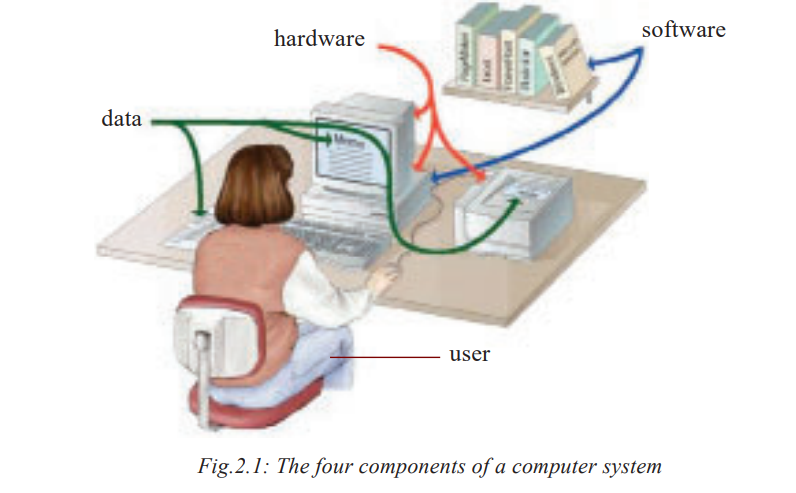
2.2 Computer functions
Computers manipulate (process) data (input) to produce information (output) andhold (store) processed information for future use as shown in Fig. 2.2.
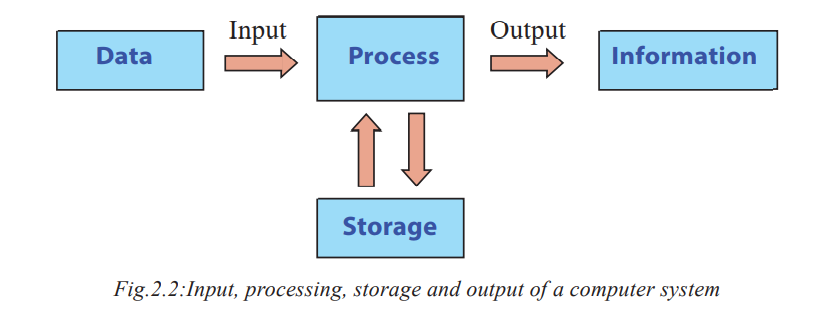
. In put: The first box on the illustration depicts
• Process: The computer then performs processing such as calculations and
comparisons.
• Output: The computer generates information that may be printed or displayed on
a screen or in a specified format.
• Storage: Data and information may be stored for future use on storage devices
such as hard disk, CD/DVD etc.2.3 Computer hardware
Generally the main hardware components of a typical desktop computer can beClassified into two broad categories namely ; peripheral devices as the system unit.
2.3.1 Peripheral Devices
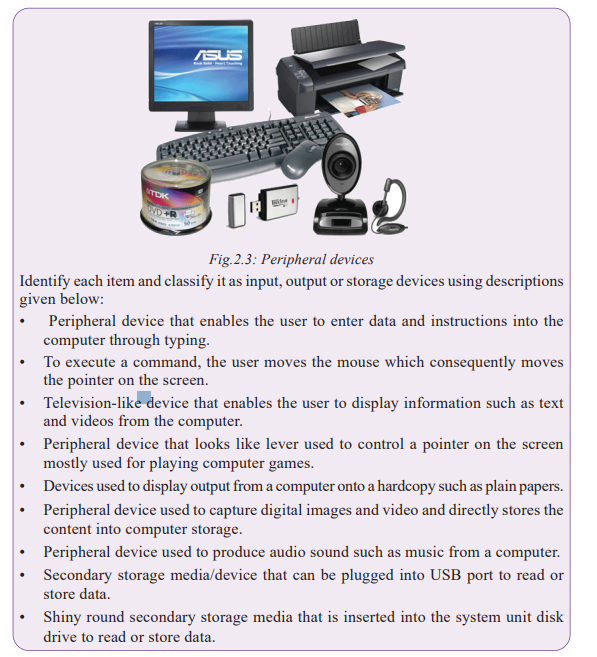
Most desktop computers consist of external devices connected to a central housing
Known as the system unit . collectively external input devices such as keyboard and
output devices such as the monitor are referred to as peripheral devices. Fig. 2.3shows common examples of peripheral devices

2.3.2 Computer case
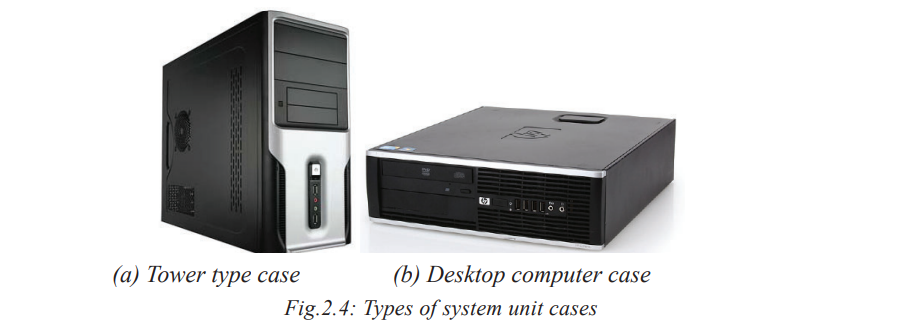
The computer case, commonly referred to as the system unit, is the main
hardware part in which internal components such as microprocessor, computer
memory, and drives are housed . In terms of physical appearance (form factor)
the two common types of system units re tower type shown in Fig .2.4 (a)
and desktop type in Fig .2.4 (b) .The main difference is that, in tower system unit
the monitor rests on the table while in desktop types; the monitor may be
replaced on top of the system unit.
2.3.2 Computer caseThe computer case

2.3.3 Ports and connectors
A port is a physical or wireless interface between the computer and peripheral devices.
Physically, you can identify ports such as shown in Fig. 2.5 through which devices
may be connected using interface cables. In this section, we discuss ports such as
serial, parallel, universal serial bus (USB), Ps/2, HDMI and VGA shown in Fig. 2.5
(a) and (b).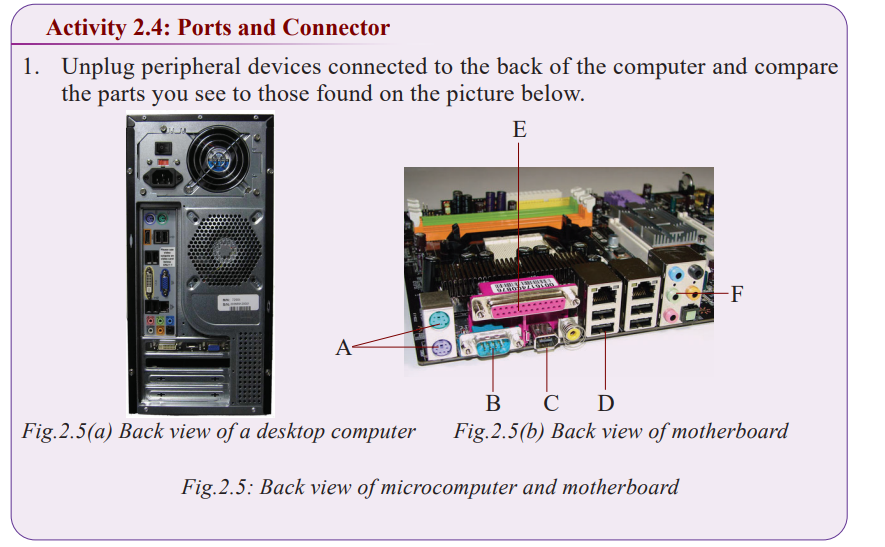
 Serial ports also known as RS232 ports are used to connect devices that transmit
2.3.3.1 Serial port
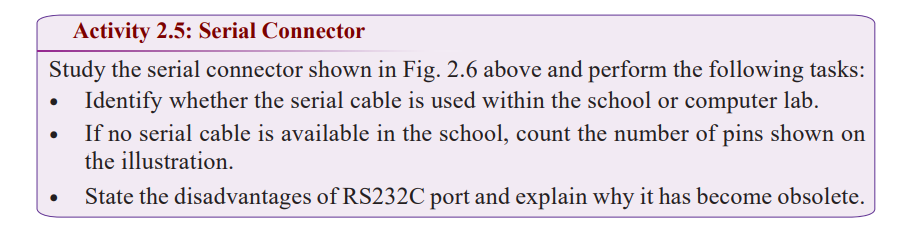
and receive data as a series of binary digits (bits). Although RS232 ports and cable
shown in Fig. 2.6 have become obsolete, they were used to connect devices such as
the mouse, serial modems and printers.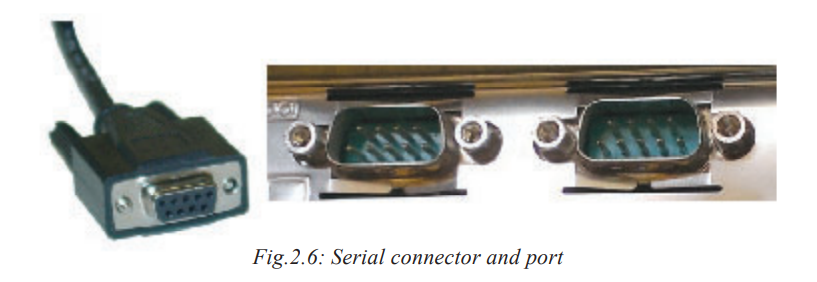
2.3.3.2 Parallel Port
A parallel port is an interface used to connect devices that transmit and receive
multiple bits simultaneously (in parallel) hence it is faster than the serial interface.
To connect devices such as printers and scanners to a parallel port, we use a 25-pin
parallel cable also referred to as DB-25 shown in Fig. 2.72.3.3.3 Universal Serial BusUniversal serial bus (USB) is industry standard interface that defines cables,connectors and protocols for connections between computers and peripheral devices.Universal Serial Bus (USB) is the high-speed serial port that has become the standardinterface hence replacing most serial and parallel ports. It is now common to find USB ports on mostelectronic devices such as tablets, radios, TVs, mobile phones, and set top boxes . on of the reasonsof the USB interface has become popular is because as many as 127 devices can bedaisy chained and connected to a single port using USB cable such as the one shown in Fig. 2.8.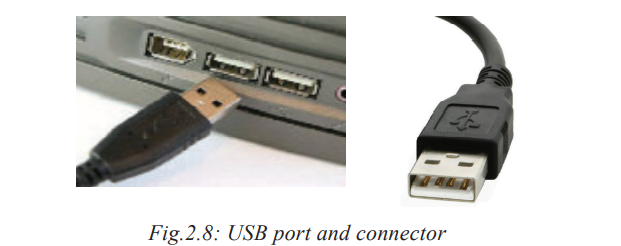
 3.3.4 Personal System/2 portsPreviously, most computers came with a pair of Personal Systems 2 (PS/2) ports alsoknown as mini-DIN. However, most computer manufacturers have phased out PS/2ports in favour of USB interfaces and wireless connectivity. Fig. 2.9 shows a closerlook of the PS/2 ports the one coded in pink to connect a keyboard while the greenports is used connects a mouse.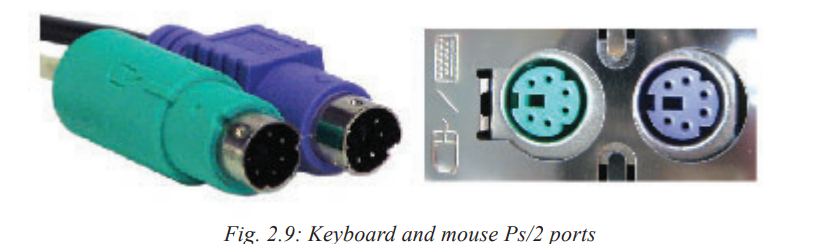
2.3.3.5 Video graphics array port
A Video Graphics Array (VGA) port is a D-shaped interface used to connect display
devices such as TVs , monitor or LCD projectors to the computer. Fig 2.10 shows an
illustration of a 15 -pin VGA cable used to connect monitor or projectors to a computer.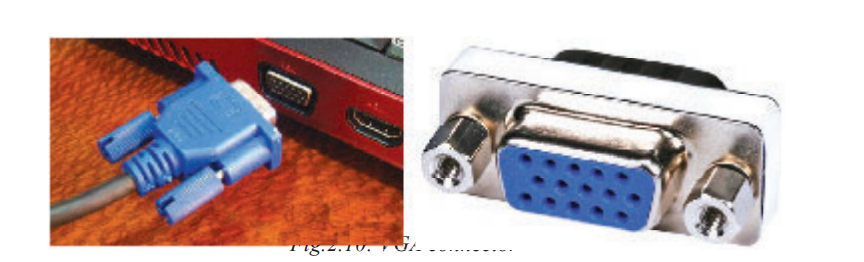
 2.3.3.6 Audio portsMost computers and mobile devices come with audio interface used to connectspeakers, microphones (mic) and other audio devices. Fig. 2.11(a) shows three audioports while fig .2 11 (b) shows output (speaker) and in put (microphone) jacks codedin green and pink colors.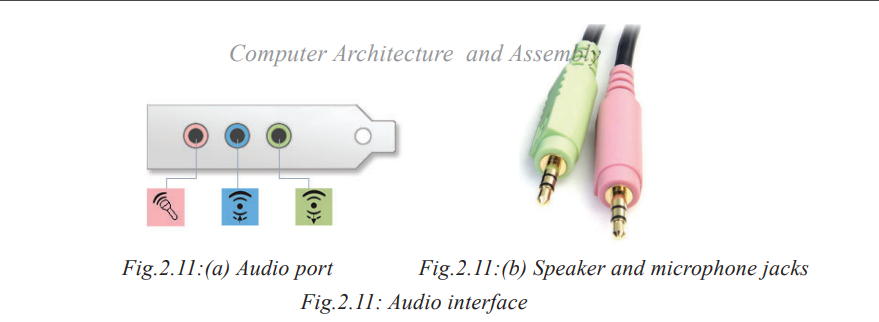
2.3.3.7 Network port
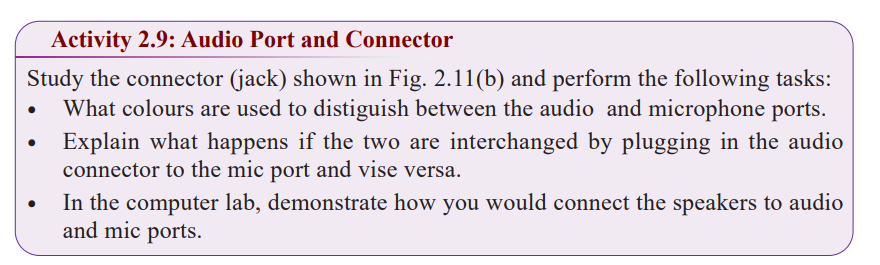
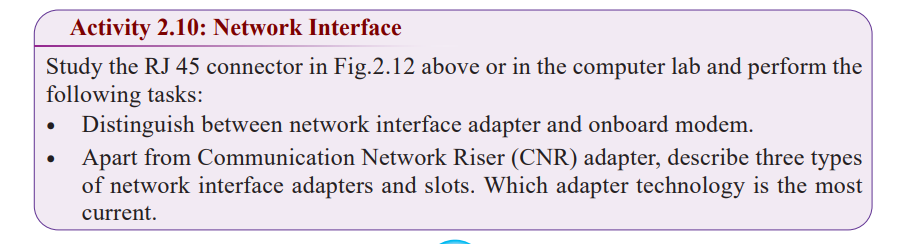
Network interface is a port that connects a device to physical or wireless transmissionmedia in computer network. Most computers today come with a network interfaceknown as RJ45 shown on fig 2.12 (b) to which transmission media with RJ45connector shown in Fig . 2.12 (b) is plugged to establish a connection.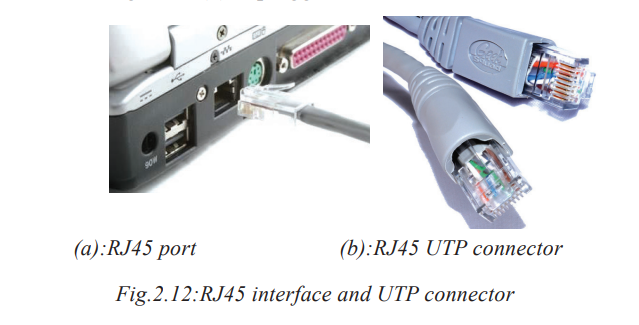
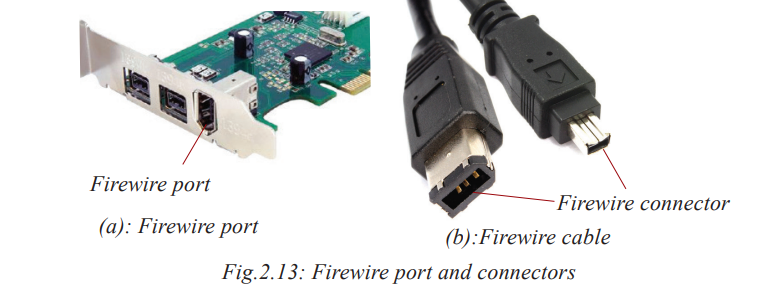
 Types of power supply unit connectors2.3.3.8 Firewire connectorFirewire port also referred to as IEEE 1394 is almost similar to USB but has higherdata transmission rate. Therefore , firewire is suitable for streaming video from digitalcameras to a computer. Fig. 2.13(a) shows an illustration of Firewire port while Fig.2.13( b ) shows the two ends of the firewire cable connectors.
 2.3.3. 9 High definition multimedia interfaceHigh Definition Multimedia Interface (HDMI) is a interface for transferringcompressed and uncompressed digital audio or video data from HDMI compliantdevice to a computer, projector, digital TV or audio device. HDMI is intended to be areplacement for analog video standards such as the VGA.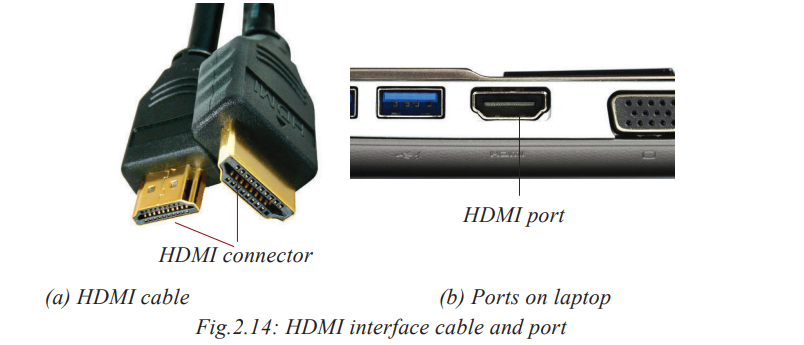
 2.3.3.10 Small Computer Systems InterfaceSmall Computer Systems Interface (SCSI) is a set of parallel interface standards
defined by ANSI for attaching peripheral devices such as printers ,disk drives ,tape
drives and scanners. Although SCSI port shown in Fig. 2.15 is available on some
devices, it has become obsolete in favour of USB, Firewire, HDMI and wireless
standards.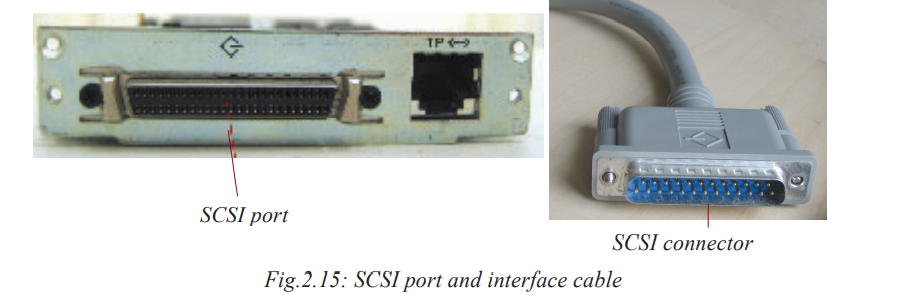
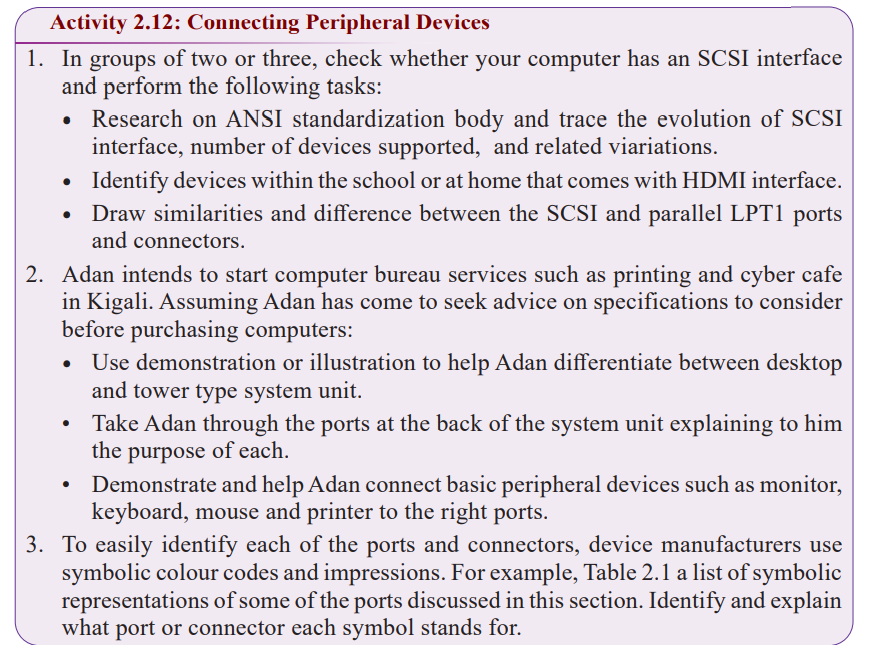
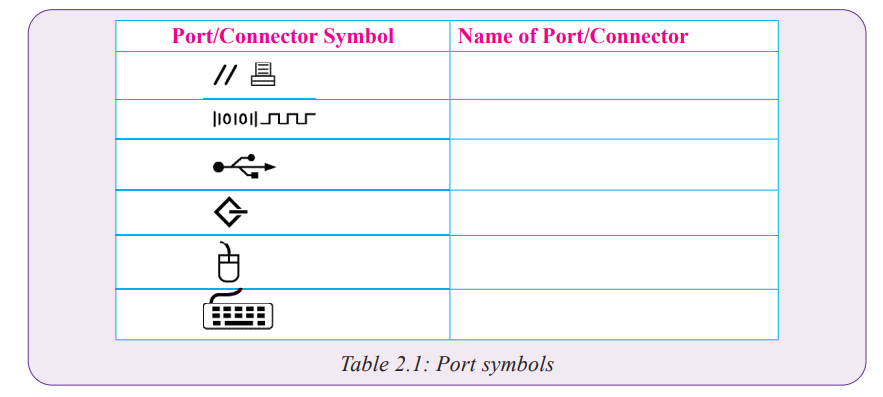 2.4 Internal Computer ComponentsWe have already learnt about various peripheral devices and how they are connected to
the system unit through ports. In this section, we discuss the main components found
inside the system unit such as disk drives, motherboard, processor and memory. But,
before we open the system unit cover, it is important that you observe the following
safety precautions:1. Always disconnect the computer from power source before starting to work on
them.2. Do not work on any peripheral device without the guidance of the tutor or
laboratory technician3. Never work in isolation because you may need help in case of any emergency.4. Always discharge static electricity that might have built up on the body by touchingan earthed metallic object or weaning antistatic wrist member.
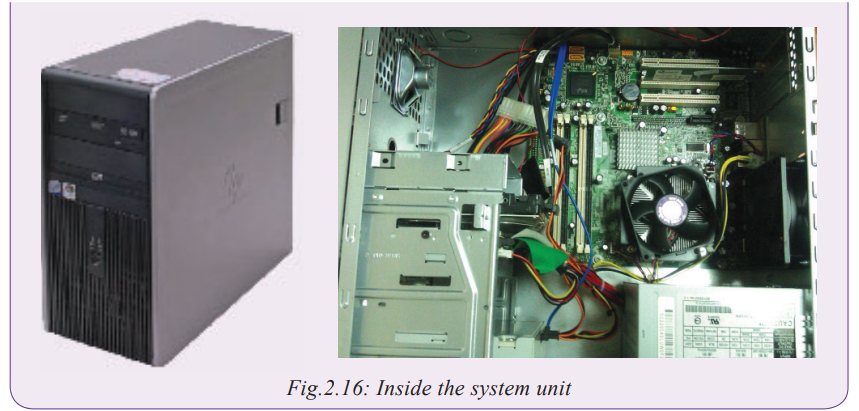 2. Observe and identify various components inside the system unit.2.4.1 Power supply unit and connectorsThe Power Supply Unit (PSU) shown in Fig. 2.17 converts alternating current (AC) from mains to direct current (DC) required by internal computer components. The current supplied to the internal components like motherboard, hard disk, and optical drives depends on the rating from the device manufacturer. Note that unlike desktopcomputer that are fitted with PSU, portable computers like laptops come with poweradapters that convert AC to DC.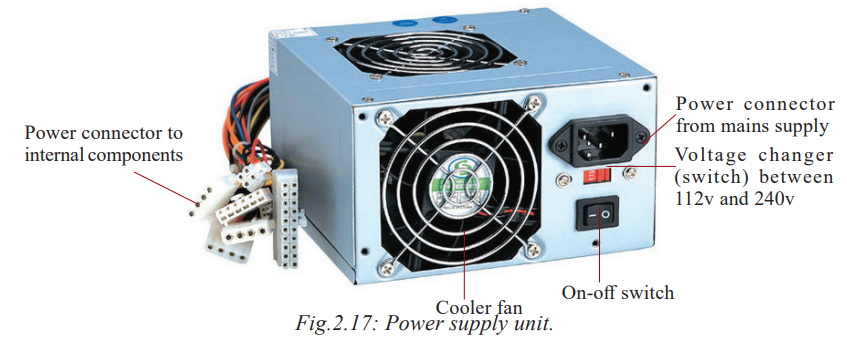
The power supply unit connectors can be classified into external and internal connectors.
The external connectors are used to connect the power supply unit to the power outlet
while internal connectors are used to supply and distribute power to internal device
Inside the computer found inside the computer case. In the power supply unit show in
Fig.2.17 above shows an examples of internal and external power connectors